How to Add Captions to TikTok Videos for More Views
Before we get into the how, let's talk about the why. A lot of creators treat captions as an afterthought—just a simple accessibility feature. But that’s a huge mistake. Captions are one of the most powerful, and most overlooked, tools for growing your TikTok account.
Think of them as your secret weapon.
Why Captions Are Your Secret Weapon for TikTok Growth
You’ll Immediately Boost Watch Time and Retention
Think about where people actually use TikTok. They're on a quiet bus, sneaking a scroll during a work break, or lying in bed next to someone who's asleep. A massive chunk of your audience is watching with the sound off.
If your video relies on audio and has no captions, you've already lost them. It’s an instant scroll.
By adding clear, synced-up text, you grab their attention no matter where they are or what their audio setting is. This directly pumps up your watch time, which is one of the biggest signals TikTok’s algorithm looks at. The longer people stick around, the more the algorithm pushes your video out to new audiences.
Captions turn your video from something that needs to be heard into an experience that can be consumed anywhere, even in total silence.
You'll Make Your Content More Accessible and Easier to Understand
Let's start with the obvious: captions open up your content to the deaf and hard-of-hearing community. That's not just the right thing to do; it’s a smart way to reach an audience you’d otherwise completely miss.
But it goes way beyond that. Captions help everyone understand your message better. Whether you talk fast, have a strong accent, or are breaking down a complex topic, on-screen text reinforces what you're saying. This clarity is a game-changer for tutorials, educational content, or any kind of detailed storytelling. It keeps people locked in because they aren't struggling to catch every word.
You'll Unlock a Hidden TikTok SEO Advantage
This is the part most creators completely miss. Captions are indexable text. When you add captions, you’re essentially handing the TikTok algorithm a full transcript of your video, packed with keywords.
This turns your video into a searchable asset.
Now, when someone searches for a term you talked about, your video has a much better shot at popping up in the results. This gives your content a much longer shelf life, driving views weeks or even months after you post it. It's also a fantastic way to repurpose video content for other platforms. Captions aren't just for watching; they’re for ranking.
Using TikTok's Built-In Auto-Captions Feature
When you need to get captions on a video quickly, TikTok’s own auto-caption tool is your best friend. It's built directly into the editing flow, so you don't have to jump to another app or mess with complicated uploads. For most creators, this is the fastest way to make your content more accessible and keep people watching.
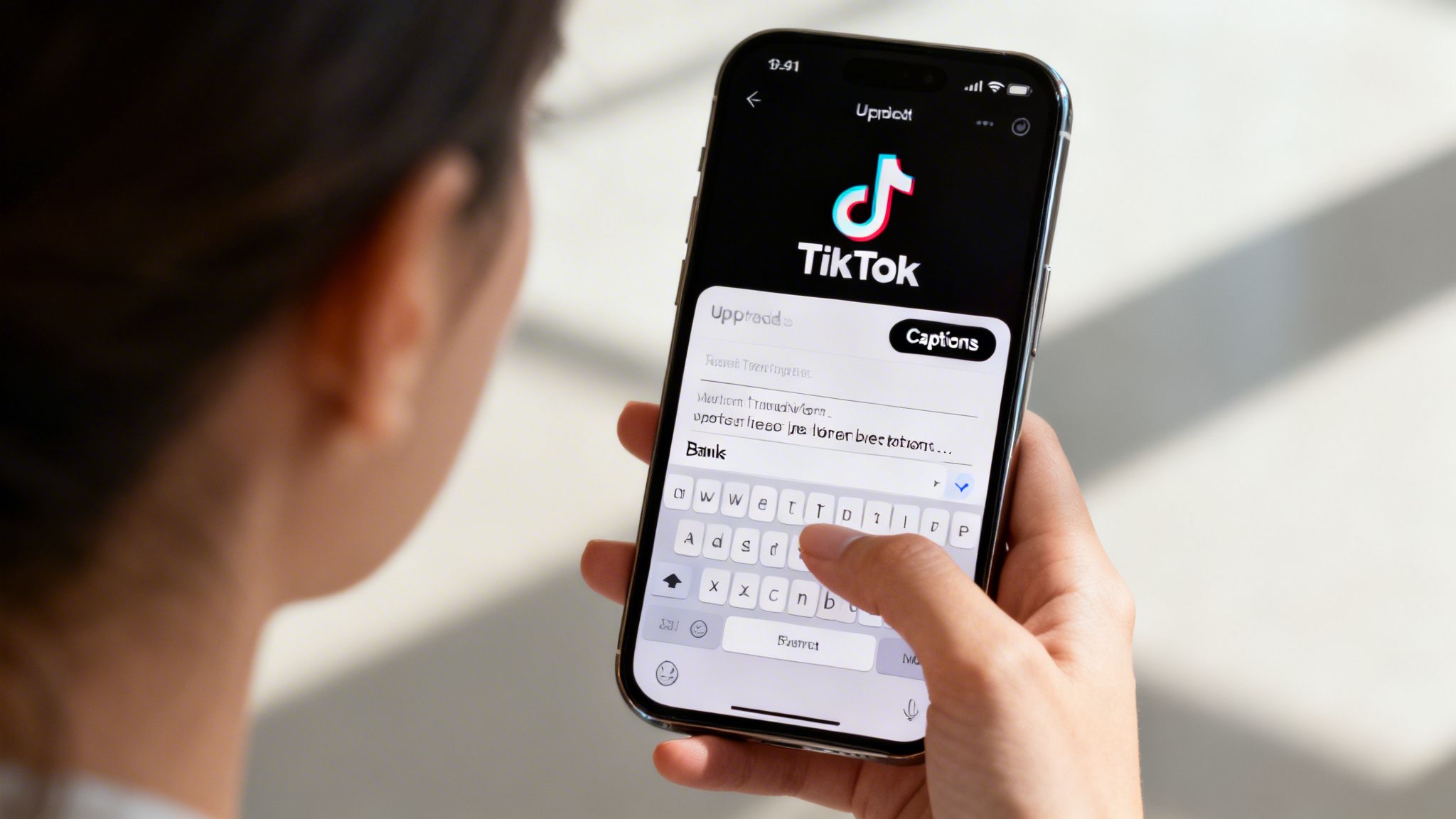
The whole process kicks off right after you've recorded or uploaded your clip. On the main editing screen, glance over to the right-hand side menu. You'll spot an icon simply labeled "Captions". Give that a tap, and TikTok’s AI gets to work, listening to your audio and generating a timed transcript of everything you said.
You can see the "Captions" button right there in the side menu on the editing screen.
Turning on the feature is simple, but the real work—the part that makes your video look professional—happens next.
Polishing Your Auto-Generated Captions
Let’s be real: TikTok’s AI is good, but it’s not flawless. It gets tripped up by brand names, slang, or any unique words you might use. That's why you absolutely must review and edit the captions it generates. It’s a non-negotiable step.
After the text appears, you’ll land in an editor where you can see each caption lined up with its part of the video. This is your chance to fix the inevitable mistakes. For example, if you say a tool name like "Transcriby," the AI might spit out "Transcribe-y" or something even stranger. Now’s the time to correct it.
Never trust auto-captions blindly. A quick proofread can be the difference between a polished, professional video and one that looks sloppy and damages your credibility.
But it’s not just about fixing typos. You also get total control over how the captions look and feel, which is just as important for keeping viewers engaged.
Fine-Tuning Timing and Readability
The way TikTok initially times and breaks up your captions isn't always ideal. A massive, unbroken sentence flashing on the screen is a surefire way to make someone scroll away. The goal is to break down your speech into short, easy-to-read chunks.
Here are a few quick adjustments I always make in the caption editor:
- Split Up Long Sentences: If the AI gives you a huge block of text, hit "return" in the editor to split it into smaller, more manageable lines. This makes it way easier for viewers to follow along.
- Merge Awkward Breaks: Sometimes the AI splits a sentence in a weird spot. You can just as easily merge two short caption blocks into one to make the flow feel more natural.
- Nail the Timing: You can literally drag the start and end points of each caption on the timeline. This is key for making sure the words appear on screen the exact moment you say them. Perfect sync looks so much better.
Taking just a couple of extra minutes to dial in these details transforms basic captions into a professional-grade element of your video. It’s one of the most important skills to learn when figuring out how to add captions to TikTok videos that people actually watch.
Mastering Manual Text Overlays for Creative Control
While auto-captions are great for speed, sometimes you need complete artistic freedom. That's where manual text overlays come in.
This hands-on method treats your captions less like a transcript and more like a core part of your video's entire aesthetic. It's the go-to approach when you want every word to pop, sync perfectly, and feel completely on-brand.
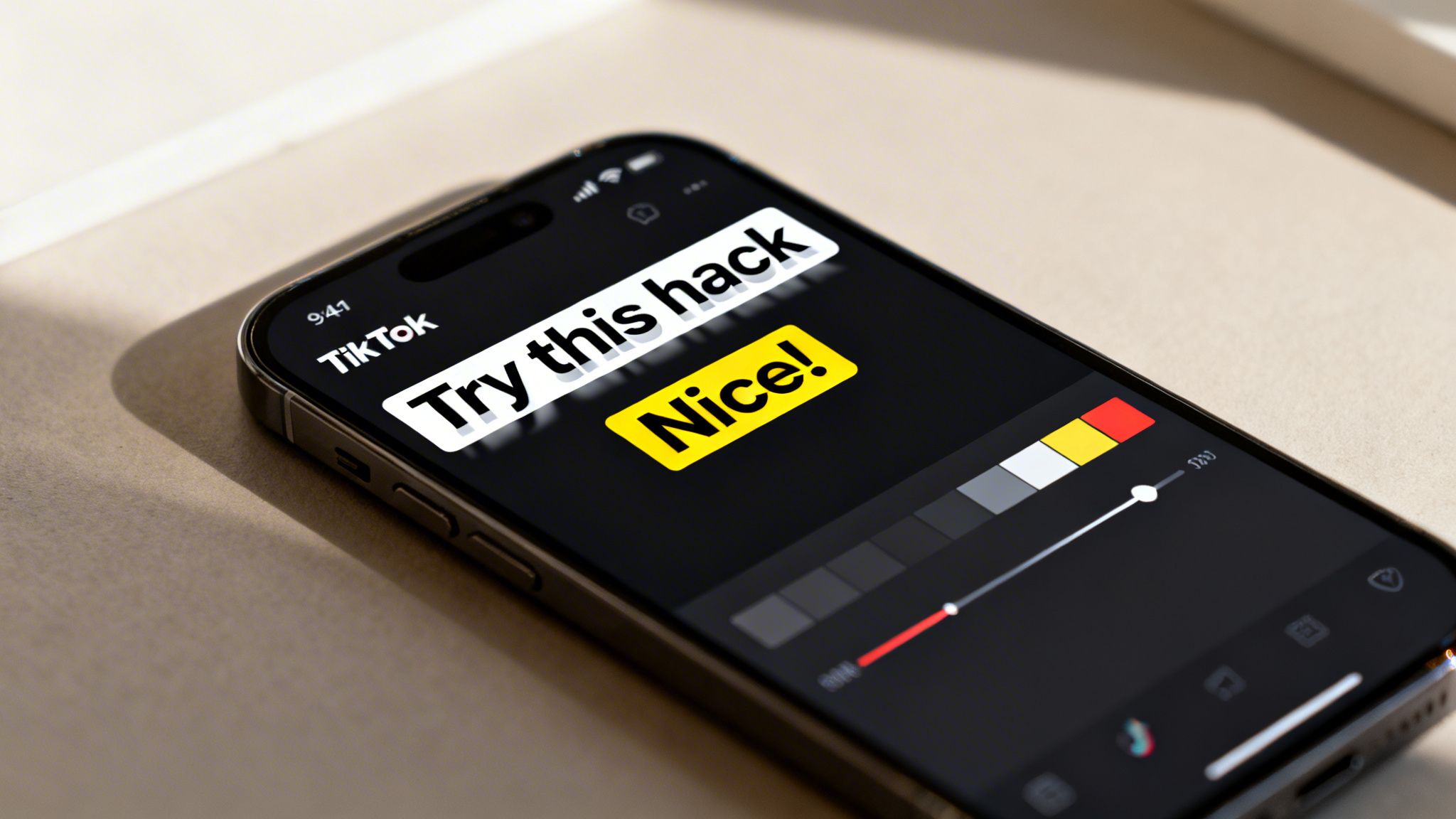
Instead of letting TikTok generate the text, you'll use the native "Text" tool to add each caption one by one. Sure, it’s more deliberate, but it unlocks a level of customization that automated tools just can't touch. You get full command over the fonts, colors, backgrounds, and animations for every single line.
This is how top creators emphasize certain words with dynamic effects or build a signature look that viewers instantly recognize.
Designing Your On-Screen Text
Once you drop in a text box, the real creative work begins. TikTok actually packs a surprising amount of design flexibility right into its editor, letting you turn simple text into a powerful visual element.
Start by picking a font and color palette that matches your video's mood or your brand's style guide. Don’t be afraid to play around with different text animations to make key phrases jump off the screen, grabbing your viewer's attention at just the right moment.
Here are a few strategies I've seen work incredibly well:
- Color-Code Your Speakers: If your video has a conversation or interview, assign a different text color to each person. It’s a simple trick that makes the dialogue way easier to follow.
- Make Keywords Pop: Give important terms a different color, a bolder font, or a unique animation. This is a great way to guide the viewer's focus and hammer home your main points.
- Create a Branded Style: Settle on a consistent look for your captions—font, color, and placement—and use it across all your videos. This builds brand recognition and gives your content a much more polished, professional feel.
The Art of Perfect Timing and Readability
Here's the biggest challenge with manual captions: getting the timing just right.
Each text overlay has to appear and disappear in perfect sync with your spoken words. If a caption lingers too long or vanishes too quickly, it creates a jarring experience that can make viewers scroll away in an instant.
To nail the timing, tap your text box and select "Set duration." This pulls up a timeline editor where you can drag the start and end points to align perfectly with your audio. This precision is what makes the manual method so powerful.
The best captions are almost invisible—they feel natural. A good rule of thumb is to keep a caption chunk between three to seven words and display it for one to three seconds, depending on word complexity.
Think about it: research shows the average person reads about 200 to 250 words per minute on a phone. That's roughly three to four words per second. This means a five-word caption should ideally be on screen for about 1.5 to 2 seconds to feel comfortable, not rushed.
Mastering this skill is a huge part of learning how to add captions to TikTok videos that people actually watch to the end.
Advanced Captioning With Third-Party Tools
TikTok’s built-in captioning tools are fine for quick, casual videos. But when accuracy is everything, they just don't cut it. If your content involves technical jargon, overlapping speakers, or you simply can’t afford any mistakes, it's time to call in a specialist.
For serious creators, dedicated captioning tools are a total game-changer. They use much more powerful AI to generate transcripts with near-perfect accuracy, saving you a ton of time you’d otherwise spend fixing typos and missed words. This is a must-have for anyone making educational content, in-depth tutorials, or detailed product reviews.
The Professional Workflow: Using an SRT File
The secret to this pro-level approach is a simple but powerful file: the SRT file (SubRip Subtitle file). It’s just a plain text file that contains your entire transcript, broken down line-by-line with precise start and end timecodes.
The workflow is surprisingly simple and incredibly effective.
First, you upload your final video to a transcription service. Its AI will chew through the audio and spit out a highly accurate, time-stamped transcript in minutes.
Next, you give it a quick once-over for any minor tweaks and then export it as an SRT file. This little file now has all the text and timing data you need for flawless captions.
Finally, you use a video editor—think CapCut or Adobe Premiere Rush—to “burn” the SRT file directly onto your video. This embeds the captions permanently, so they look exactly how you designed them before you even open the TikTok app. The result? Professional-grade accuracy and total creative control.
Comparing TikTok Captioning Methods
To really understand the difference, let's break down how each method stacks up. TikTok's native tools are fast but clunky, manual overlays give you control but take forever, and third-party tools offer the best of both worlds.
| Feature | TikTok Auto-Captions | Manual Text Overlays | Third-Party Tools (e.g., Transcriby) |
|---|---|---|---|
| Speed | Very fast initial generation | Very slow; requires manual timing | Extremely fast transcription |
| Accuracy | Moderate; struggles with accents, jargon, and noise | As accurate as you type it | High to near-perfect accuracy |
| Creative Control | Limited styling and placement options | Full control over text, font, color, and timing | Full control when burned into video |
| Best For | Casual, simple talking-head videos | Short videos with minimal text | Professional, educational, or bulk content |
Ultimately, choosing the right tool comes down to balancing your need for speed, precision, and a polished final product. For high-stakes content, the initial investment in a third-party workflow pays for itself in time saved and quality gained.
Why Tools Like Transcriby Excel
Let's be real: integrated tools are a jack-of-all-trades, master of none. Dedicated transcription services, on the other hand, are built for one thing and one thing only: turning speech into flawless text.
A tool like Transcriby, for instance, is designed to handle complex audio without breaking a sweat.
Don't let the simple interface fool you. Pasting a video link kicks off a powerful process that can dramatically speed up your content creation.
Think about repurposing long-form content. Imagine turning one 20-minute YouTube video into ten different TikToks. Manually captioning every single clip would be an absolute nightmare. A third-party tool makes it not just possible, but easy.
Mastering this process is a key part of learning how to add captions to TikTok videos at scale. You can see exactly how a dedicated TikTok transcript generator can streamline this entire workflow.
When to Choose This Advanced Method
So, should you use this workflow for every single video? Probably not. It shines in specific situations where the extra step delivers a massive return.
Pull out the third-party tools when:
- You're using niche terminology. Talking about medical terms, legal concepts, or lines of code? A specialized AI will nail the vocabulary that TikTok’s general AI would butcher.
- The audio quality isn't perfect. Background noise, music, or multiple people talking at once can completely derail TikTok's captions. Pro tools are built to handle messy audio.
- You're creating content in bulk. If you're a social media manager or prolific creator, the time you save on editing captions adds up fast. That’s more time you can spend creating.
- Brand consistency is crucial. By burning in your captions, you lock in your brand's font, colors, and style. They'll look perfect no matter what TikTok changes in its next update.
Optimizing Captions for Engagement and TikTok SEO
Simply adding captions isn't enough. The real magic happens when you start optimizing them. This is what separates amateur content from videos that genuinely perform. Think of your on-screen text less as a transcript and more as a strategic tool for grabbing attention and making your video discoverable. Every single word needs to work for you.
It all starts with readability. Viewers decide whether to keep watching in less than a second, and text they can't instantly read is a one-way ticket to a scroll-by. Always go for high-contrast styling—think bold white text with a black outline or a solid background—to make sure your words pop, no matter what’s happening in your video. Keep your lines short and punchy, around three to five words, to create a rhythm that’s easy to follow.
Turning Captions into a Search Magnet
Here’s something many creators overlook: every word in your captions gets indexed by TikTok’s algorithm. This is huge. It turns your on-screen text into a powerful asset for TikTok SEO. By strategically including keywords in your captions, you make your video searchable long after that initial 24-hour view burst fades.
For instance, if you're a baker sharing a sourdough tutorial, you need to make sure the phrases “sourdough recipe” and “baking tips” actually appear on the screen. When someone searches for those terms, your video is way more likely to show up. This is a game-changer for sustainable growth.
Your on-screen text isn't just for the viewer; it's a direct signal to the TikTok algorithm about your video's topic, relevance, and value.
Writing Captions That Drive Action
Beyond discoverability, your captions are your direct line to driving interaction. Use the text to talk to your audience. Popping a simple question on the screen, like “Have you tried this before?” can do wonders for your comment count.
You also need a clear call-to-action (CTA) to tell viewers what to do next. The simpler, the better.
- “Follow for Part 2”
- “Link in bio for the full recipe”
- “Comment your favorite tip below”
This little layer of interaction turns passive viewers into active participants, which is another massive signal to the algorithm that your content is worth pushing.
Now, while your on-screen text is vital, don't sleep on the video description either. TikTok has massively expanded its character limit for descriptions, now allowing up to 4,000 characters. That's a 730% increase from the old 300-character limit, giving you a ton of real estate for storytelling and keywords.
However, more space doesn't always mean better results. Data often shows that shorter, punchier captions perform best. For a deeper look at these trends, you can explore the impact of caption length on TikTok engagement. The sweet spot is a blend of SEO-rich keywords and compelling, concise copy. And of course, mastering how to transcribe video to text will make your entire workflow that much smoother.
Common Questions About Adding TikTok Captions
As you get into the swing of captioning your videos, a few questions tend to pop up again and again. Getting these sorted out early will save you a ton of frustration and help you build a smarter workflow.
Can I Add Captions to a TikTok Video After Posting?
This is the big one, and the answer is a hard no. Once a video is live on TikTok, its on-screen text and captions are baked in. You can't go back and add or edit anything.
If you hit "Post" and then spot a typo or a timing mistake, your only move is to delete the video, fix the issue in your draft, and re-upload it. This is exactly why proofreading before you publish is so important. A tiny mistake can cost you all that initial engagement you worked for.
Think of your captions as being permanently printed onto the video file the second it goes live. That mindset forces you to double-check everything upfront and saves you a major headache later.
This rule holds true even if you've burned captions directly into the video with a third-party tool. That text is now a permanent part of the video itself.
How Can I Make My TikTok Captions More Readable?
Readability is everything. If people have to squint to read your text, they’ll just keep scrolling. The goal is instant clarity.
Your top priority should always be high contrast. Think light-colored text on dark backgrounds or the other way around. TikTok's own text editor has a great feature for adding a solid background or a drop shadow to your text—use it. That small tweak makes your words pop against even the busiest video backgrounds.
A few more pro tips for maximum readability:
- Pick Clean Fonts: Stick to simple, bold, sans-serif fonts. Fancy script fonts might look cool, but they're a nightmare to read quickly on a small screen.
- Respect the Safe Zones: Keep your text away from the very edges of the screen. TikTok overlays its own interface—your username, the sound title, like/comment buttons—in these areas, and you don't want your words getting covered up.
- Break Up Your Lines: Never throw a wall of text on the screen. Chop your sentences into short, punchy lines of three to seven words. It creates a natural rhythm that’s much easier for viewers to follow along with.
Do Captions Really Help My Videos Get More Views?
Yes, one hundred percent. The impact isn't just a guess; it's direct and measurable for two key reasons.
First, you’re massively expanding your audience. Captions make your content accessible to viewers who are deaf or hard of hearing. Even more significant, you're catering to the huge number of people—some studies say it's over 80%—who watch videos with the sound off. If they can't understand your video on mute, you lose them instantly.
Second, that on-screen text is a goldmine for TikTok SEO. The algorithm reads the words in your captions to figure out what your video is about. When you include relevant keywords in your on-screen text, you're telling TikTok exactly who to show your video to. This dramatically improves its chances of showing up in search results, helping you get views long after the first day. This is a core part of learning how to add captions to TikTok videos for real growth.
Ready to create perfectly accurate, viral-ready captions in seconds? Transcriby uses powerful AI to pull flawless, time-stamped transcripts from any TikTok, YouTube Short, or Reel. Stop wasting time on manual edits and start creating content that gets seen. Try Transcriby for free and see the difference.