Mp3 to Text A Practical Guide for Creators and Marketers
It’s almost laughably easy to convert an MP3 to text these days. You just upload your audio file, maybe paste a video link, and an AI tool spits out a full transcript. Simple, right? But the real magic isn't just turning sound into words—it's what you can do with those words.
Why Turning MP3 to Text Unlocks Your Content's Potential
Before we get into the nitty-gritty, let's talk about why this is such a game-changer. Converting audio to text isn't just a neat trick; it’s a core strategy for anyone serious about getting the most out of every piece of content they create. You’re essentially turning a one-trick-pony audio file into a versatile asset that can power your entire marketing machine.
Think about it: Google can't listen to your podcast. It can’t tune into your webinar to see what you talked about. But it can—and will—crawl every single word of a text transcript. This one move immediately cracks open a massive SEO opportunity, letting your audio content start ranking for all the valuable keywords you mentioned.
The Power of Accessibility and Repurposing
Beyond getting on Google's good side, transcripts make your content available to everyone. We're talking about people who are deaf or hard of hearing, non-native speakers who find it easier to read along, and honestly, just people who would rather skim a blog post than listen to an hour-long recording.
"Every audio file is a goldmine of untapped content. A transcript is the key that unlocks it, turning one recording into a blog post, a dozen social media snippets, and an email newsletter."
This brings us to the biggest win of all: repurposing. A single podcast interview is no longer just a podcast interview. With a transcript in hand, it can become so much more.
- A full-length blog post: Your transcript is already 80% of the work. Just clean it up, add some headings, and hit publish.
- Viral social media clips: Quickly scan the text for punchy one-liners and turn them into eye-catching quote graphics for Instagram or LinkedIn.
- Video captions: Captions are non-negotiable for social video where most people watch with the sound off. And learning how captions improve video SEO reveals just how much of a visibility boost you're missing out on.
- Detailed show notes: Give your listeners a skimmable summary they can reference later.
- An email series: Pull out three key themes from the conversation and turn each one into a value-packed email for your subscribers.
By getting smart about how you reuse your audio, you can fill your content calendar for weeks from just one recording. If you want to dive deeper, our guide on how to repurpose video content is packed with more ideas.
How to Prepare Your Audio for Accurate Transcription
The single biggest mistake I see people make is uploading a messy audio file and expecting a perfect transcript. It just doesn't work that way. No matter how smart the AI is, it can't magically decipher words buried under background noise or muddled by poor recording quality.
It’s the classic "garbage in, garbage out" problem.
Before you even think about hitting that "transcribe" button, spending just a few minutes prepping your audio can be a total game-changer. This is the pro move that separates a clean, usable document from an error-riddled mess that takes hours to fix.
Tidy Up Your Soundscape
Background noise is the arch-nemesis of accurate transcription. That humming air conditioner, the distant traffic, even the echo from an empty room—all of it can trip up transcription algorithms, leading them to mishear or completely skip words.
The first order of business is to remove background noise from audio so the AI can focus only on the voices. You don't need a professional studio for this. Free software like Audacity has surprisingly powerful noise reduction tools that can clean things up with just a few clicks.
Think about an interview recorded in a busy coffee shop. Using Audacity’s "Noise Reduction" effect, you can sample the background chatter and subtract it from the entire recording. This simple action can easily boost your transcript’s accuracy by 10-15% or more.
Normalize and Balance Your Audio Levels
Another all-too-common issue is wacky volume levels. In a normal conversation, one person might speak louder than another. If that difference is too extreme, the AI will likely just ignore the quieter speaker altogether.
This is where normalization comes in. It's a simple process that scans your entire audio file and brings the overall volume up to a consistent, standard level. This ensures no part of your recording is too soft to be detected or so loud that it sounds distorted.
Pro Tip: When you have multiple speakers, always normalize the entire track at once. This boosts the overall volume while preserving the natural volume differences between speakers. You avoid making one person sound like they're suddenly shouting.
Choose the Right File Format and Bitrate
Okay, so you're starting with an MP3, but not all MP3s are created equal. The file’s bitrate, which determines how much data is used to capture the sound, has a massive impact on clarity. A low-bitrate file might sound okay to your ears, but it often lacks the subtle detail an AI needs to work effectively.
Here are a couple of hard-and-fast rules I always follow:
- Start with a high-quality source: Whenever possible, record in a lossless format like WAV or FLAC first. You can always compress it down to an MP3 later.
- Export with a solid bitrate: When you save your final MP3, never go below 192 kbps (kilobits per second). If you're dealing with complex audio—like a podcast with intro music or multiple overlapping speakers—aim for 320 kbps.
Taking these extra steps makes a world of difference. You’re giving the transcription tool the cleanest possible source to work with, which means far less editing and cleanup for you on the other side.
So you've got an MP3 file and you need it turned into text. Easy enough, right?
Well, the "best" way to do it really depends on what you're trying to accomplish. The right choice comes down to a classic triangle of trade-offs: speed, accuracy, and cost. You can usually pick two. A lawyer who needs a perfect transcript for a court case has completely different needs than a social media manager trying to pull a few quick quotes from a podcast interview.
Let's break down your main options.
The Main Transcription Options
The old-school method is manual transcription. This is exactly what it sounds like: a human sits down, listens to your audio, and types out every single word. For decades, this was the only way, and it's still the gold standard for accuracy. A good human transcriber can hit 99% accuracy or even higher because they get the nuances—sarcasm, regional accents, overlapping speakers—that can trip up a machine. The big downside? It's slow and expensive.
Then you have automated AI transcription. This is where you upload your MP3 to a service like Transcriby, and a powerful algorithm spits out a full transcript in minutes, sometimes seconds. It's ridiculously fast and incredibly affordable, which is a game-changer for creators and businesses who need to process a ton of audio without breaking the bank. While AI has gotten scarily good, accuracy for a clean, single-speaker audio file usually lands in the 85-95% range. Toss in background noise or crosstalk, and that number can dip.
Finally, there's a hybrid approach that mixes the best of both. An AI does the initial heavy lifting, creating a draft in minutes. Then, a human proofreader sweeps through to clean up errors, correct names, and polish the final text. This gets you the near-perfect accuracy of a human but at a much faster turnaround and lower cost than a fully manual job.
For most podcasters, marketers, and content creators, a pure AI solution is the sweet spot. The sheer speed of getting a transcript in seconds usually makes the few minutes you might spend on cleanup a worthwhile trade-off.
Transcription Method Comparison
To make the decision even clearer, here’s a simple breakdown of how these methods stack up against each other on the factors that matter most.
| Method | Best For | Typical Accuracy | Turnaround Time | Cost |
|---|---|---|---|---|
| Manual | Legal, medical, or academic work requiring absolute precision. | 99%+ | Hours to days | High ($1-$3 per minute) |
| Automated AI | Podcasts, interviews, social media content, and meeting notes. | 85-95% | Seconds to minutes | Low (Free to cents per minute) |
| Hybrid | Professional content where high accuracy is crucial but speed is still a factor. | 99% | Hours | Medium ($0.50-$1.50 per minute) |
Ultimately, the table shows there's no single "best" method, just the best one for your specific project's needs and budget.
Specialized Workflows for Modern Creators
Let's be real—if you're a social media manager or video creator, your "audio" often isn't a neat little MP3 file. It's locked inside a TikTok, a YouTube Short, or an Instagram Reel.
This is where URL-first tools completely change the game. Instead of the clumsy process of downloading a video, ripping the audio, and then uploading that MP3, you can just paste the link. It’s a much more direct and efficient way to work, especially if you're trying to jump on a viral audio trend or repurpose clips for other platforms.
We dive deeper into this workflow in our guide on using a free video to text converter. At the end of the day, the right tool is the one that slots into how you already work, removing friction instead of adding another tedious step.
A Practical Look Inside AI Transcription Tools
Enough with the theory. Let's actually walk through how these AI tools turn an mp3 into text. Seeing it in action makes the whole process click and shows you just how fast you can get a transcript you can actually use. The workflow today is so clean it’s often just a few clicks.
The biggest game-changer has been the move away from the old upload-and-wait model. If you're a content creator pulling audio from places like TikTok or YouTube, URL-based transcription is a massive shortcut. No more downloading a video, ripping the audio, and then uploading the MP3. You just paste a link.
This isn't an accident; it's a direct response to how we all make and watch content now. The global AI transcription market is already at USD 4.5 billion and is expected to rocket to USD 19.2 billion by 2034. That explosion is almost entirely fueled by the demand to process audio from short-form videos.
Getting Started in the Transcription Workspace
After you paste your link or upload a file, you’ll land in a simple workspace. This is your mission control, where a few quick settings will make or break the quality of your transcript. It’s so tempting to just hit "transcribe" and get on with it, but trust me, ten seconds here can save you an hour of headaches later.
Here’s what a typical, clean interface looks like. All the important stuff is right up front.
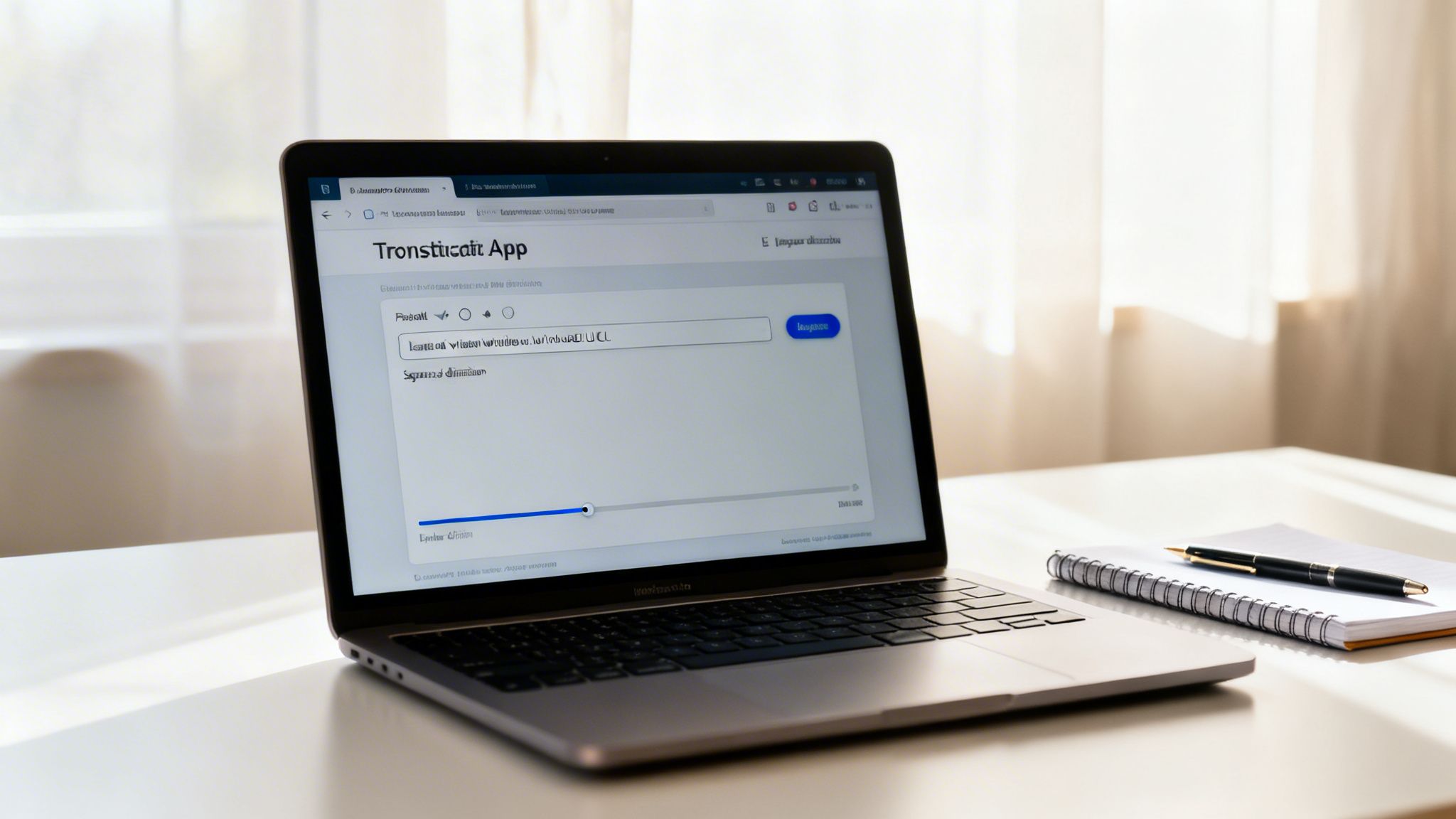
This dashboard puts the most critical choices right where you can't miss them.
These are the settings you should never, ever skip:
- Source Language: Always double-check this. If the AI is listening for English but the speaker has a thick accent or is actually speaking Spanish, your results will be useless garbage. Most good tools support dozens of languages.
- Number of Speakers: This little setting triggers speaker diarization, a fancy term for automatically figuring out who is talking and when (e.g., "Speaker 1," "Speaker 2"). If you’re transcribing an interview or a podcast, this is completely non-negotiable for a readable transcript.
My Pro Tip: Even if I have a recording with just one person, I sometimes set this to "2 speakers." Why? It can help isolate any random cross-talk or background voices the mic accidentally caught. The AI tags them as a separate speaker, making them super easy to spot and delete in the editing phase.
Choosing Your Final Output
Once you've set the language and speakers, the last step is picking your output format. This is all about how you plan to use the text file after it's done. Your options usually come down to a few industry-standard formats, and each has a specific job.
You'll almost always see these three options:
- TXT (.txt): This is just a plain text file. It’s perfect for copying and pasting into a blog post, show notes, or a Google Doc. It’s clean, simple, and works everywhere.
- JSON (.json): This one is for the developers and data nerds. It’s a structured format that often contains way more detail, like the exact start and end time for every single word. It's incredibly powerful for building custom apps or doing deep analysis.
- SRT (.srt): This is the gold standard for video captions. The file contains your text broken into perfectly timed chunks. You can upload an SRT file directly to YouTube, Premiere Pro, or pretty much any video platform, and your captions will just work.
After you've made your choices, you hit the button. For a quick social media clip, a good AI tool will spit out a complete, time-stamped transcript in less than a minute. From there, you're ready to edit, polish, and repurpose it. We break down that entire process in our guide on how to transcribe video to text.
How to Edit and Refine Your AI Transcript
Let's be real: an AI-generated transcript is a fantastic starting point, but it's almost never the finished product. I like to think of it as an excellent first draft that gets me about 90% of the way there. That last 10%—the human touch—is what turns a functional text file into a polished, professional document ready for the world.
This is the phase where you make sure the text you pulled from your MP3 is actually accurate and readable.
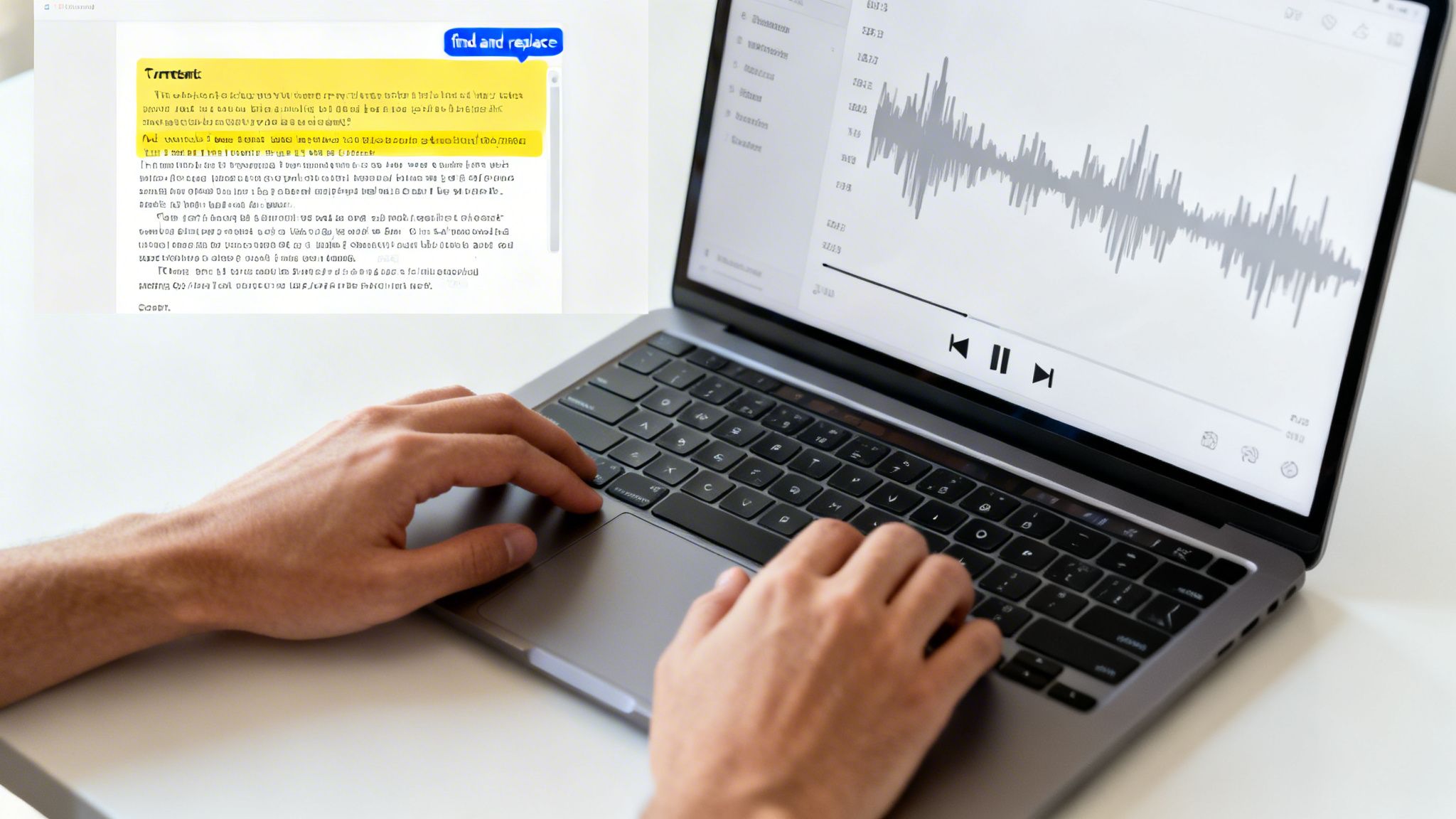
Even though today’s real-time speech-to-text tools can hit over 95% accuracy in perfect conditions, that little gap is where all the subtle—but crucial—errors hide. Polishing this up is essential if you’re creating content for SEO, research, or captions that need to meet global accessibility standards like WCAG 2.1. It’s especially critical for social video, where a reported 80% of users watch with the sound off. For a deeper dive, you can check out this full market report on speech-to-text accuracy.
Your Essential Proofreading Checklist
When I first started editing AI transcripts, I’d just read them from top to bottom. It didn't take long to realize that a more systematic approach saves a ton of time and catches more mistakes. Now, I run through a mental checklist to hunt for the most common AI slip-ups.
Here's where to focus your attention:
- Proper Nouns: AI often gets tripped up by unique names of people, companies, or products. It might hear "Transcriby" and spit out "Transcribe-y," something I see all the time.
- Homophones: These are the words that sound alike but mean totally different things. You absolutely have to double-check for mix-ups like "their" vs. "there," "to" vs. "too," or "your" vs. "you're."
- Punctuation: AI can be really clumsy with commas and periods. It often creates massive run-on sentences or breaks them up in weird places. A quick punctuation pass makes a huge difference in readability.
Pro Tip: Your best friend here is the "Find and Replace" function (Ctrl+F or Cmd+F). If you spot the AI consistently misspelling a name, you can fix every single instance in one shot instead of hunting them down one by one.
Cleaning Up for Clarity
Once you’ve corrected the outright errors, the next step is to clean up the natural messiness of human speech. A verbatim transcript includes every single "um," "ah," "like," and false start. While technically accurate, it makes the final text clunky and difficult to read.
Your goal should be to create what’s called an intelligent verbatim transcript. This just means you snip out the filler words and repeated phrases to present the speaker's message clearly, all without changing their original meaning. This one little step makes the content feel so much more authoritative and professional.
Finally, always, always review the timestamps. For video captions, even a one-second delay can completely ruin the viewing experience. Scan through the transcript and make sure the text is syncing up correctly with the audio. If a timestamp feels off, just nudge it so the caption pops up at the exact moment the words are spoken.
Got Questions About Converting MP3s to Text? We've Got Answers.
Jumping into audio transcription can feel a little confusing at first. As you start turning your MP3 files into usable text, you’ll probably have a few questions about how to get the best results or what to do with your transcripts once you have them.
Let's clear up some of the most common questions we hear.
What’s the Most Accurate Way to Convert an MP3 to Text?
For absolute, undeniable perfection—we're talking 99% accuracy or higher—nothing beats a professional human transcriptionist. The trade-off? It's slow and it gets expensive, fast.
For almost everyone else—creators, marketers, students, you name it—a top-tier AI transcription service is the way to go. With clean audio, these tools can hit up to 95% accuracy, giving you an incredible blend of speed, cost-effectiveness, and quality. The single biggest lever you can pull for better AI accuracy is starting with a clean audio file with as little background noise as possible.
There's a middle ground, too, which is the standard for critical legal or medical work. An AI generates the first draft in minutes, then a human expert swoops in to proofread it, pushing it to 100% accuracy. It's the best of both worlds.
Can I Transcribe Audio with Multiple Speakers?
Absolutely. In fact, this is where modern AI tools really shine. They're built from the ground up to handle conversations with more than one person.
This is all thanks to a feature called speaker diarization. The AI is smart enough to listen for shifts in vocal patterns, automatically separating the dialogue and labeling each speaker (think "Speaker 1," "Speaker 2," etc.). If you're transcribing interviews, podcasts, team meetings, or focus groups, this isn't just a nice-to-have feature; it's essential for a transcript that's actually readable.
A quick tip for the best results: try to make sure each person is recorded clearly and at a similar volume level.
How Can I Use a Transcript for SEO?
This is my favorite part. A transcript is basically an SEO goldmine because search engines like Google can read text, but they can't listen to audio. When you post the full transcript alongside your podcast or video, you’re giving Google a massive, keyword-rich document to crawl and index.
Suddenly, your content isn't just ranking for your main topic; it's ranking for every single specific, long-tail phrase spoken in the recording.
But don't stop there. You can spin that one transcript into a whole new set of search-optimized content:
- Launch a detailed blog post: Your transcript is already 80% of the way to an in-depth article.
- Write killer show notes: Give your audience a skimmable summary that also pulls in search traffic.
- Build out a content series: Identify the key themes in your transcript and expand each one into its own separate blog post.
This is how you turn a single audio file into an entire content marketing campaign.
Is It Legal to Transcribe Just Any Audio File?
This is a big one, and it all comes down to copyright and what you plan to do with the transcript. If you created the audio—it's your own podcast, a lecture you gave, or a meeting you recorded—you're in the clear. Transcribe away.
Things get a bit more complex when you're working with someone else's copyrighted material. This falls under "fair use" laws, which can differ depending on where you are. Transcribing for your own personal study, research, or to write a critique is usually okay. But trying to sell a transcript of a popular song? That would almost certainly be copyright infringement.
When in doubt, especially if you're using it for commercial purposes, the safest bet is always to get permission from the copyright holder first.
Ready to turn your audio into powerful text assets in seconds? With Transcriby, you can paste a link to any short-form video and get a clean, accurate transcript in under a minute. Start your free trial at Transcriby today and see how easy it is to unlock your content's full potential.